Every part of the business workspace, in the order it appears in the sidebar: what it does, where to find it and what you can set. Screenshots show a demo business.
Dashboard
Where to find it: Sidebar → Dashboard
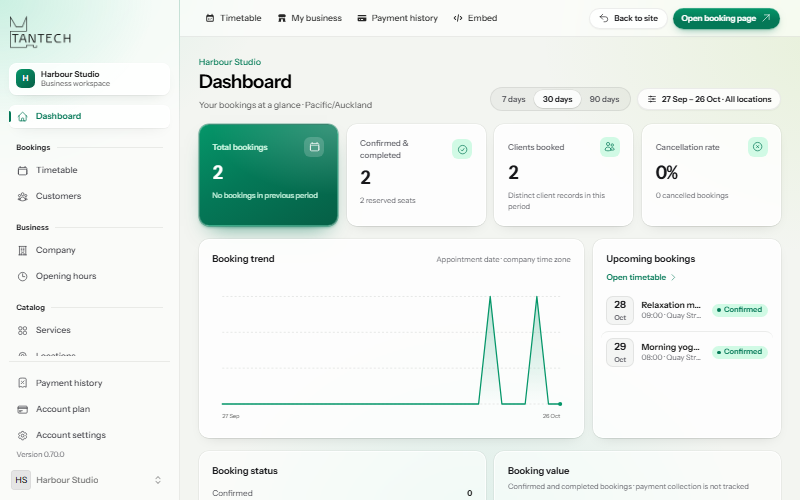
Where you land after logging in: bookings for the last 30 days, the trend, the status breakdown and what is coming up next.
Totals for bookings, confirmed and completed seats, clients and the cancellation rate
Booking trend by appointment date in your time zone
Upcoming and recent appointments with one-click access to each
Timetable
Where to find it: Sidebar → Timetable
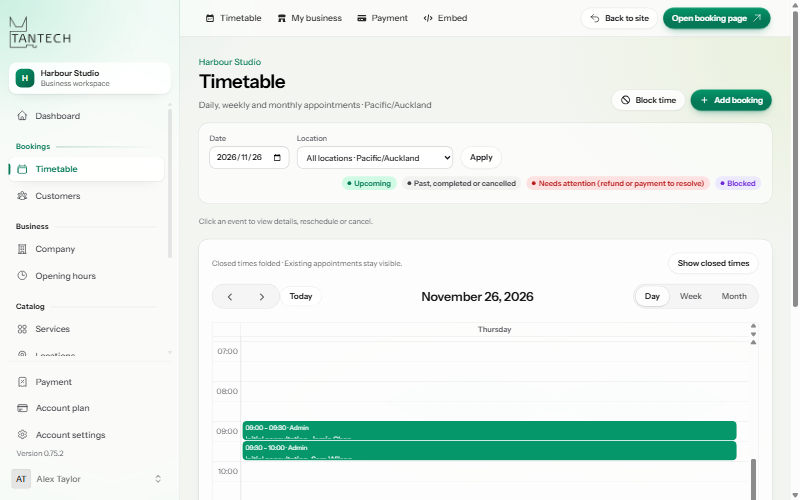
Every appointment on one calendar. Choose a date and a location, or see all locations on the business time zone. Closed times fold away so the working day fills the screen.
Day, week and month views; Today, previous and next
Add booking lets owners book for an existing or new customer without taking an online payment. These appointments carry an Admin label.
Block time to close selected periods. Click an appointment to view details, reschedule, cancel, or mark it completed or no-show.
Show closed times to see the full 24 hours
Customers
Where to find it: Sidebar → Customers
Everyone who has booked with you, whether as a guest or with an account tied to your business.
Search by name, email or phone; filter guests and account holders
Bookings count with how many are upcoming, and the last booking date
Account holders can log in on your booking page to manage their own appointments
Company
Where to find it: Sidebar → Company
Your business profile: the name and description customers see, the logo, the time zone used for reports, and your contact details and address.
Company name, description and logo (also used on emails)
Company time zone for reports and the all-locations timetable
Public email receives new booking and cancellation alerts. If blank, alerts go to the owner’s login email.
Contact person, phone, website and address with map lookup
Opening hours
Where to find it: Sidebar → Opening hours
The business hours cap every location and provider: nothing can be booked outside them. Set one weekly schedule plus the days you are closed or open differently each year.
One opening period per weekday with optional breaks and overnight closing
Special days repeat every year by month and day
Public holiday presets by country, imported in one click and editable after
Services
Where to find it: Sidebar → Services
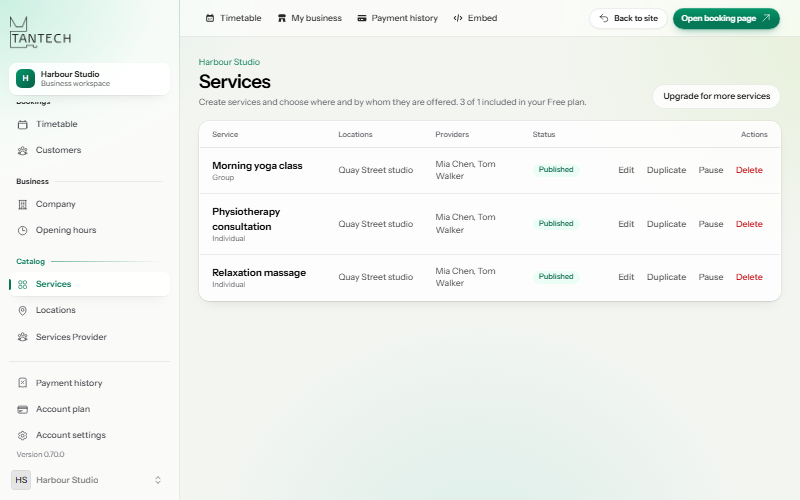
What customers can book. Each service has its own length, rules, providers and, when you use locations, the locations it is offered at; the list shows where it is offered and whether it is published.
Individual (one customer per time) or group (several people in one booking, with a minimum, maximum and step)
Fixed length and buffer time; optional fixed start times instead of a grid
Linked locations and, optionally, providers; without providers you set how many bookings can overlap
A service guide with text and photos, a booking form with custom questions, and a price (paid online on the Pro plan)
Duplicate, pause or delete; a hidden service stays off the booking page
Service settings
Where to find it: Sidebar → Services → a service
The service form is one panel split into modules: details, time, locations, provider, guide, booking form, schedule and payment. Modules not included in your plan are shown but switched off.
Service details: name, description, type and image
Time details: length, buffer, bookings past closing time, fixed start times
Service schedule: hours and special days that override the location and business hours
Booking form: name and email are always asked; add your own fields
Locations
Where to find it: Sidebar → Locations
Optional, from the Basic plan (2 locations; 5 on Pro). Without locations customers go straight to choosing a service. While a location accepts bookings, every service must be linked to one and services without a location are paused; pause or delete every location and customers skip the location step again. A location with upcoming bookings cannot be deleted; past bookings keep showing where they took place. Each location has its own address, time zone and hours, and knows which services and providers work there.
Address with map, phone and email shown on the booking page
Opening hours and closed days that can differ from the business
Default location for the booking page; duplicate a location to start a second one quickly
Services Provider
Where to find it: Sidebar → Services Provider
The people (or rooms) customers can book with. Providers follow the business opening hours unless you set different times for a location or a service, and are linked to the services they deliver. Time off is blocked on the Timetable.
Profile with contact details, photo and capacity (how many at a time)
Own timetables per location or service; Timetable → Block for time off
Included from the Basic plan; on Free, services are booked without choosing a person
All modules
Where to find it: Sidebar → Modules → All modules
Extra features you add to your business when you need them. Some modules are free; paid modules need a Basic or Pro plan. An added module gets its own item under Modules in the sidebar, where you set it up and switch it on or off.
Add a free module in one click; Details shows what it does and what it sends
Paid modules are bought by the owner on Plan & Modules, billed monthly on the same card and renewal day as your plan, with their own invoice
The first month is charged for the days left until your plan renews
Paid modules end with your plan; stop or resume their renewal in Manage billing & invoices
The question mark on each card opens that module's section here
Google Analytics 4
Where to find it: Sidebar → Modules → Google Analytics 4
Send what customers do on your booking page and in the Booking widget to your own Google Analytics 4 property, so you can see where bookings start and where people stop.
Enter your GA4 Measurement ID (G-…) and switch the module on
Ten events, all named tt_bookit_…, are always sent: the table below lists each one, when it is sent and its parameters
Every event also carries embedded (true inside the Booking widget) and business_id (your account number)
No customer names, emails or phone numbers are sent
Booking widget: copy the widget code again after switching GA4 on or changing it; the code then sends the events from your own website
Event
When it is sent
Parameters
tt_bookit_page_view
Each booking step shown (step, embedded or not).
step, page_location
tt_bookit_location_select
A location is chosen.
location_id, location_name
tt_bookit_service_select
A service is chosen.
service_id, service_name
tt_bookit_date_select
A day is chosen in the calendar.
date, service_name
tt_bookit_time_select
A time is chosen and the details form opens.
date, time, service_name
tt_bookit_booking_form_start
The details form is shown.
service_name
tt_bookit_booking_form_submit
The details form is sent.
step
tt_bookit_payment_start
The payment step is shown.
value, currency, service_name
tt_bookit_payment_complete
A paid booking reaches its confirmation (with value and currency).
value, currency, service_name
tt_bookit_booking_complete
The confirmation is shown (with value and currency).
value, currency, service_name
Booking settings
Where to find it: Sidebar → Global settings → Booking settings
The rules that apply to every service, and how your calendar is displayed.
Minimum notice, booking window and cancellation notice
Timetable grid interval, week start and 12 or 24 hour time
Changing the grid pauses services with incompatible durations. Adjust their durations and enable them again. Existing bookings keep their durations.
Collection currency for prices
Payments
Where to find it: Sidebar → Global settings → Payments
Online payments for bookings, collected straight into your own Stripe account.
On the Pro plan
Connect your own Stripe account; a small platform fee (1%) plus Stripe's processing fee comes off each payment
Optional tax added on top of your prices
Refund rules and processing days for your cancellation policy
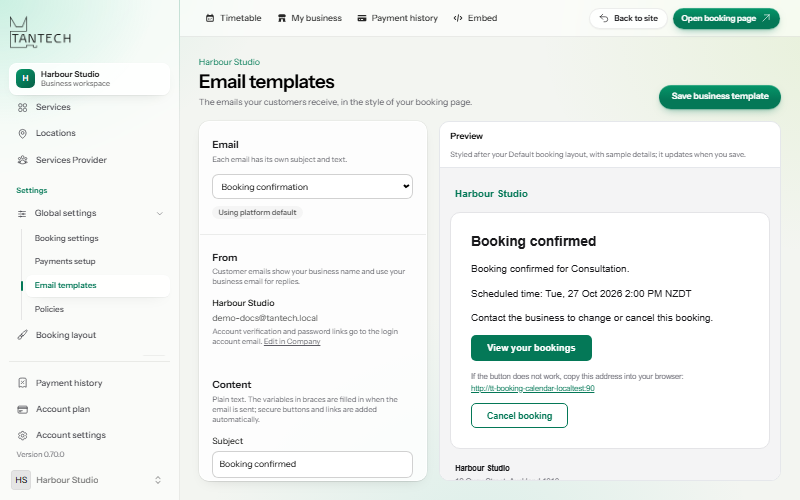
Email templates
Where to find it: Sidebar → Global settings → Email templates
The emails your customers receive, in the style of your booking page. Each one has a subject and text with variables that are filled in when it is sent.
Booking confirmation, change and cancellation, account and verification messages
Start from the platform default and rewrite in your own words
Logo and footer follow your Booking layout design
Policies
Where to find it: Sidebar → Global settings → Policies
Edit your Cancellation & Refund Policy. The booking page also displays the Privacy and Cookie policies published by the platform.
Start from the cancellation and refund template with your business details and booking rules
Customers accept the applicable policies when booking or registering. Accepted versions are recorded.
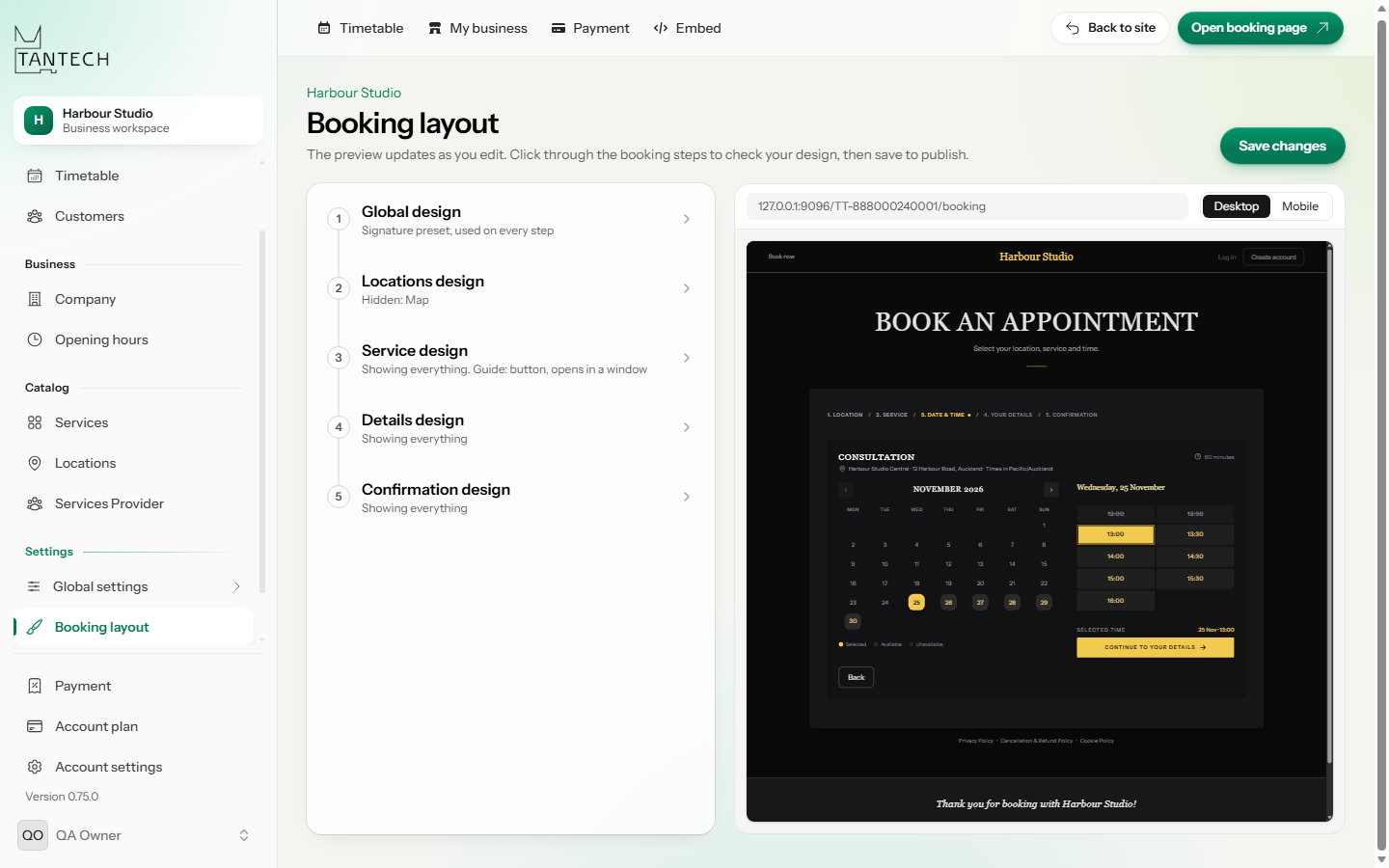
Booking layout
Where to find it: Sidebar → Booking layout
Edit the booking page and click through each step in the live preview. Save changes to publish your design.
Five presets: Default, Business, Fashion, Cute and Signature
Colour, corners, banner image and text, and optional About, How it works, Tips and footer sections
Choose Step wizard, Single page or Quick bar, then choose the fields each step shows
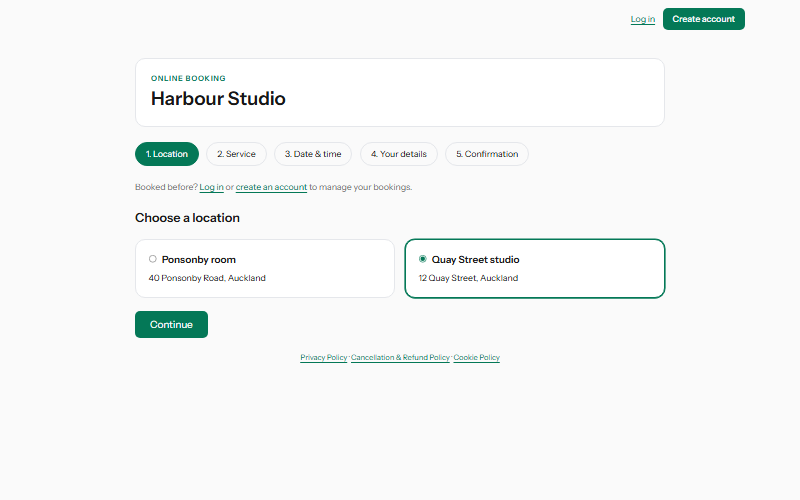
The booking page
Where to find it: Top bar → Open booking page
What your customers see. They choose a location if your business uses locations, then a service and, when the service has providers, the provider they want, then a date and time, then enter their details and confirm.
A service with providers always asks for one before any time shows, in every booking flow
Live availability from business, location, provider and service hours
Guest booking or a customer account tied to your business
Confirmation email with the details, and a link to cancel or change within your rules
Booking widget
Where to find it: Sidebar → Global settings → Booking widget
Put the booking module on any website. The widget keeps your Booking layout design; you choose which modules it shows without changing your booking page.
One snippet: service, date and time, details
Switch modules such as Banner, Opening hours or the Policies panel on or off for the widget only
Pro: add your own CSS to the widget
Works inside your own site; the customer completes the booking there
Plan & Modules
Where to find it: Sidebar → Plan & Modules
Your plan, what it includes and how it is billed. Upgrade to Basic or Pro, enter a discount or activation code, and change plan later: upgrades switch today with the unused time credited, downgrades take effect at your next renewal.
Free, Basic and Pro compared feature by feature
Free includes 50 bookings a month: past that, bookings still arrive, but the Timetable is covered and business emails pause until the 1st
Monthly or yearly billing; manage invoices and your card through Stripe
Choose which service and location keep taking bookings if a paid plan ends
Account settings
Where to find it: Sidebar → Account settings
Your own login: name and email, password and two-factor authentication, light or dark appearance. The card that pays your subscription is managed under Plan & Modules → Manage billing & invoices.
Profile and login email (a changed email must be verified again)
Security: password, two-factor authentication and passkeys
Team memberships: the businesses that invited you, each with Leave team
Your next booking starts here.
Start free with one service and one location. No card needed; add more when your business asks for it.